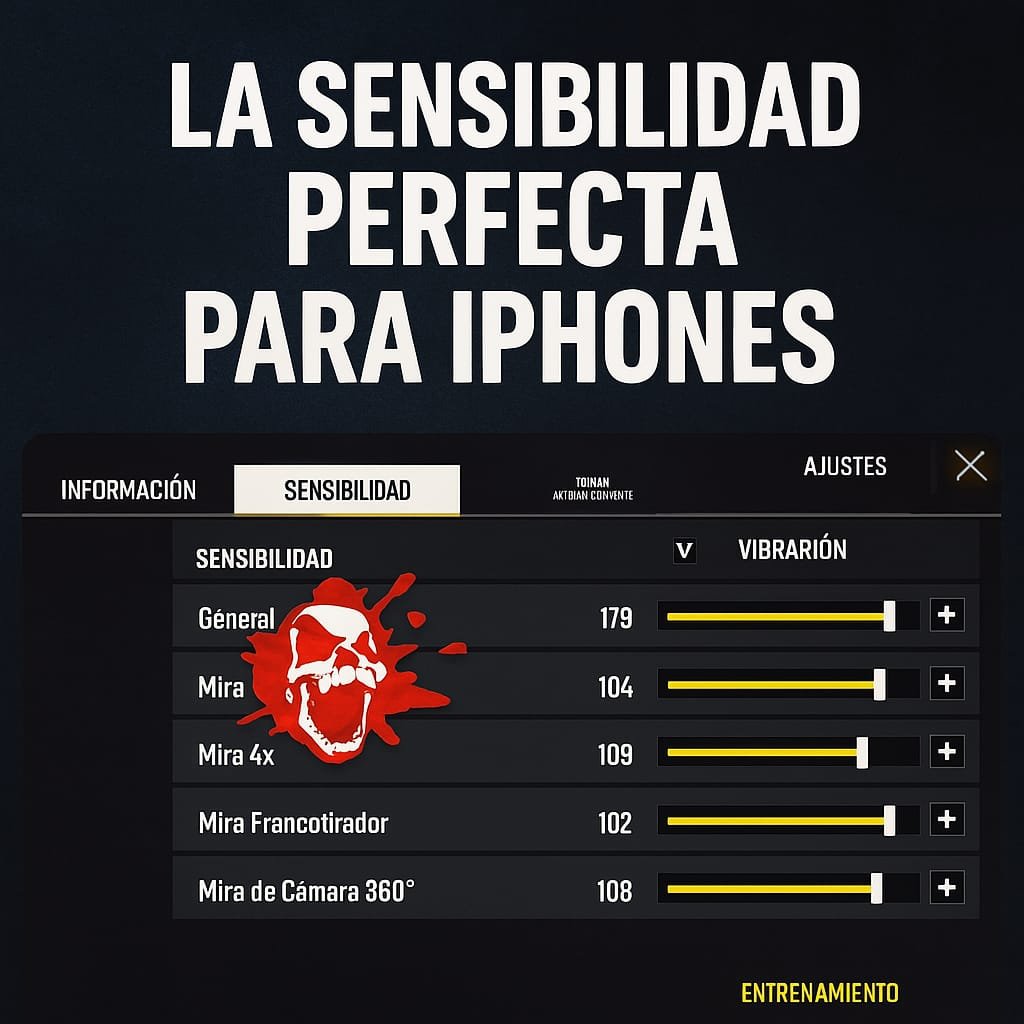
Playing Free Fire on an iPhone is a fluid experience thanks to Apple’s excellent optimization and responsiveness. However, to truly excel, having a good device isn’t enough: you need customized sensitivity settings that make the most of your playstyle. In this post, I explain in depth how to adjust your sensitivities so your headshots are lethal, your aim is precise, and you have total control.
📱 Why is playing on an iPhone different?
iPhones, especially models like the iPhone 11, 12, 13, 14, or 15, offer very fast touch response, meaning that even small finger movements translate into instant on-screen reactions. This allows you to play at higher sensitivities without losing control, unlike many Android devices, where touch lag forces you to lower the sensitivity to avoid errors.
🎯 Recommended iPhone Sensitivity in Free Fire
Here are some base settings that you can adjust based on your experience and comfort level:
General: 95 – Ideal for moving quickly and aiming smoothly.
Red Dot Sight: 88 – Perfect for precise one-tapping.
2x Sight: 80 – Balanced for mid-range combat.
4x Sight: 75 – Absolute control at long distances without the scope shaking.
AWM Sight: 50 – Lower for precise movements with snipers.
Camera: 100 – For agile, free-roaming camera movements.
Free Sight: 90 – For quick dragging and lifting your headshot.
💡 Tip: If you play with a gyroscope or use 3 fingers (or even 4), you can slightly increase the General and Camera sensitivity.
🧠 Understanding Each Sensitivity
General: Influences camera movement when you’re not aiming. This is where your ability to react quickly is determined.
Red Dot and Sights: Crucial for raising your sights. A small sensitivity change can make the difference between a chest shot and a headshot.
Free Aim: Affects unaimed shots. Useful in close-range PvP or when using weapons like shotguns.
🛠 Advanced Settings for Competitive Players
If you’re serious about tournaments or ranked play, these details also matter:
Frame Rate (FPS): Always on High or Ultra if your iPhone supports it.
Graphics: Smooth to improve performance, although Pro models can run on Standard without issue.
Fire Button Style: Use the fire button on the left side for a more comfortable vertical drag (ideal for raising your sights).
⚙ How to Calibrate Your Ideal Sensitivity
Every player has a different style. Here’s a quick method to find your sweet spot:
Start with the suggested settings.
Enter training mode and practice for 10 minutes with each sight.
If you find the sight too high (it goes over your head), lower the sensitivity.
If you struggle to raise it or it always stays on your chest, raise it.
Make micro-adjustments in increments of 2 and repeat.
✅ Final tip: Save your settings to your account so you don’t lose them in future updates or device changes.
🔚 Conclusion
iPhones offer a real tactical advantage in Free Fire due to their excellent touch performance, but that advantage only translates into victories if you know how to configure it to your advantage. Correctly adjusting your sensitivities can be the difference between finishing in the top 50 or achieving the BOOYAH. So don’t play with the default settings: customize, experiment, and master.
Raise your sights like a pro and make the enemy squad tremble when they see you’re on an iPhone!
Hola me pasa una sensibilidad para OPPO a53s por favor